 Soku AI
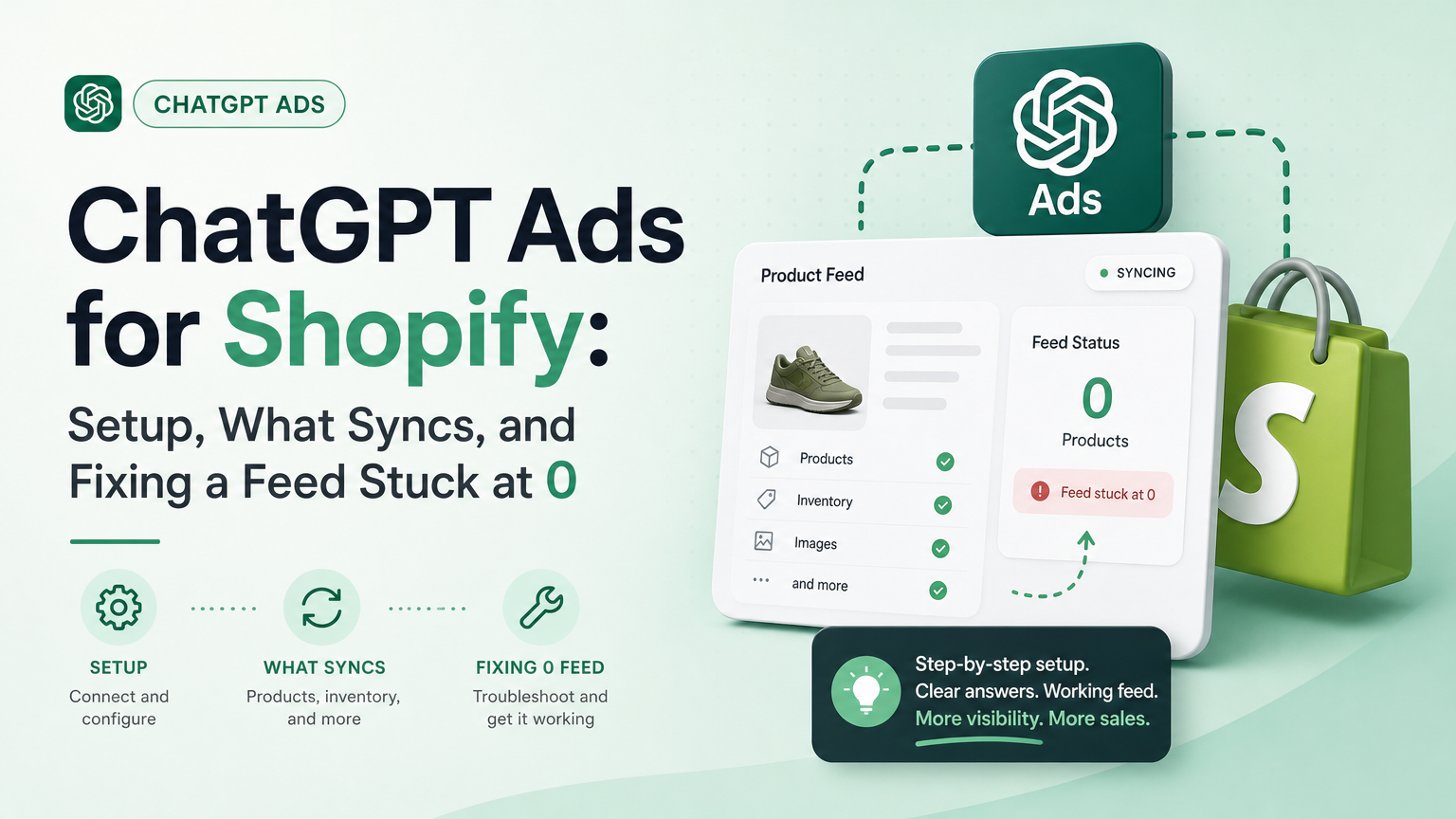
OpenAI's ChatGPT Ads app for Shopify promises to turn your catalog into ChatGPT ads with less setup: connect an account, pick a pixel, wait for the sync, launch. For some merchants it works on the first try. For others the feed sits at 0 products and nothing explains why. This guide covers both cases. It explains what the app does according to OpenAI, what it leaves to Ads Manager, how to avoid counting each purchase twice, and how to work out where a stalled sync is stuck.
Last verified: 2026-10-20. Every statement about the app comes from OpenAI's help centre, OpenAI's developer documentation, or the app's own Shopify App Store listing, each linked where it is used. Our interpretation is labelled Soku analysis. One item comes only from OpenAI's advertiser product-update email, and it is labelled that way. Soku did not install the app on a live store for this article. Nothing here is a first-hand account of its screens.
For the full channel overview, start with ChatGPT Ads: everything you need to know. This article covers one path into the channel: the Shopify app.
What changed, and how we checked
Soku captures 62 OpenAI ChatGPT Ads pages every day: help-centre articles, the Advertiser API and measurement documentation, the ad policies and OpenAI's ads announcements. The 2026-10-20 capture (run run-20261020T000456Z, compared with run-20261019T001805Z) collected all 62 pages and passed its completeness audit. It flagged 27 help-centre pages as changed and 0 developer-documentation pages.
We diffed every flagged page line by line. None of the 27 had a substantive wording change. The differences were "Updated: N days ago" timestamps, reordered or added "Related articles" blocks, a support-contact widget appearing or disappearing, and one capture where the page returned an "upstream request timeout" instead of the article. We re-fetched that page (Ads Manager Beta Overview) and its text matched the previous day's copy. Three articles (Create Ads, Ads Manager Account Setup and the advertiser FAQ) showed fresh "Updated" times but no text change in the capture.
So there is no new documented rule today. That is why this is a reference guide on a topic we had not covered in depth, not a news article. While choosing it, we found one real change on a page that is not in our 62-page capture: OpenAI's Set up ChatGPT Ads for Shopify article showed "Updated: 4 hours ago" on 2026-10-20. We compared the live text with the Internet Archive's copy from 2026-09-23.
One section is gone. The 2026-09-23 copy contained:
Manage your Shopify Connection
To manage the Shopify connection, open Settings in the ChatGPT Ads app for Shopify. From Settings, you can review the connected Ads Manager account, manage the product feed, and update the connected Pixel.
The 2026-10-20 copy has no such section. It goes straight from "View Campaign Attribution and Performance" to "Disconnect Shopify". Every other sentence is word-for-word identical between the two copies, including the availability sentence and the $25-increment note discussed below. The archive gives us only those two points in time, so we can say the section was removed between 2026-09-23 and 2026-10-20. We cannot give an exact date. The "4 hours ago" stamp suggests it was the most recent edit.
Soku analysis. Removing a documented location for "review the connected Ads Manager account, manage the product feed, and update the connected Pixel" does not prove the Settings screen is gone from the app. OpenAI may have moved, renamed or reworked it. But the help centre no longer tells you where to check which account and pixel the app is connected to. That matters, because "confirm the correct Ads Manager account" and "confirm the Pixel is connected" are still the first two items in the same article's troubleshooting list. Until OpenAI documents a replacement, write down the account ID and Pixel ID when you connect so you can check them later.
What the app is
| Item | What the source says | Source |
|---|---|---|
| Name | ChatGPT Ads, listed as "Create, run and analyze ChatGPT Ads using your product catalog" | Shopify App Store listing |
| Developer | OpenAI | App Store listing |
| Price of the app | Free (ad spend is billed separately in Ads Manager) | App Store listing |
| Launched | September 3, 2026 | App Store listing |
| Works with | Checkout, Shopify Admin | App Store listing |
| Availability | "currently available to all Shopify customers in the US and will be available wherever ChatGPT ads are available shortly" | OpenAI help article |
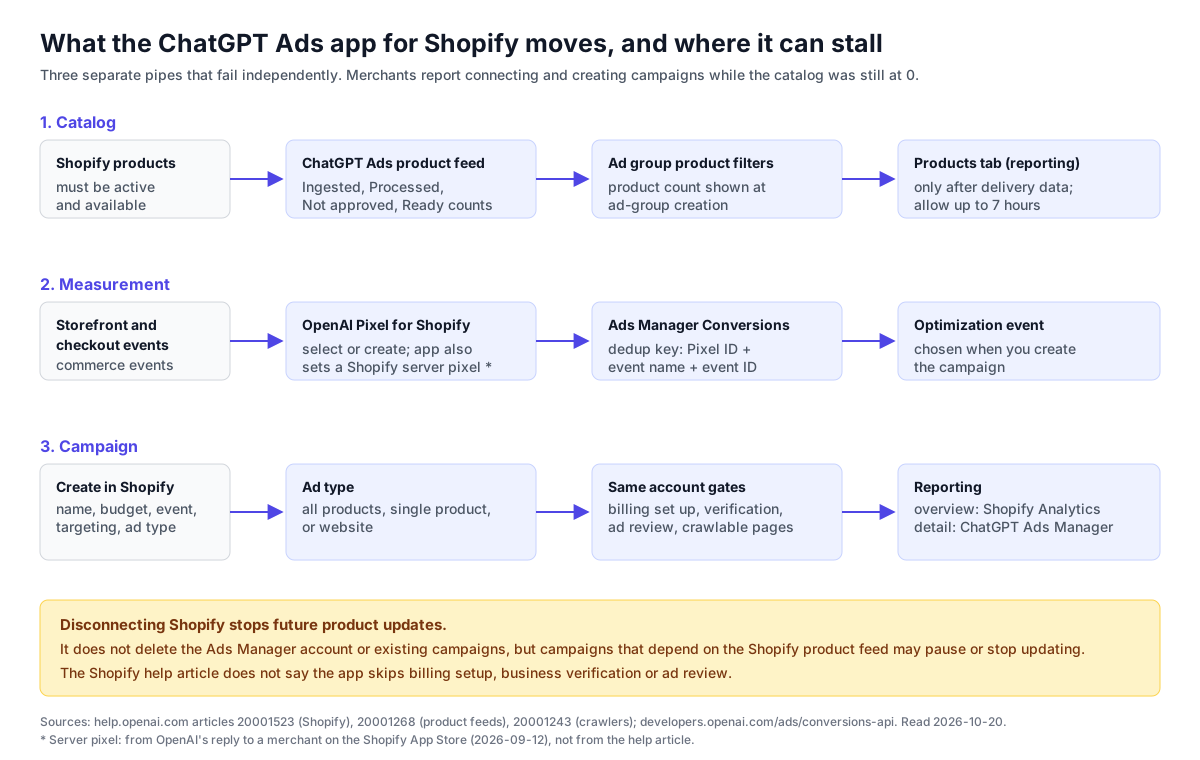
| What it syncs | product inventory and catalog information, store updates, commerce events through OpenAI Pixel for Shopify | OpenAI help article |
| Data it requests | customer name and email; IP address, browser and OS, browsing behavior, client ID cookie; store owner contact details; products and collections; edit marketing events; edit web pixels and server pixels | App Store listing, "Data access" |
| Rating on 2026-10-20 | 2.2 from 21 reviews | App Store reviews |
The listing describes five things the app does: connect an existing ChatGPT ad account or create a new one from Shopify, sync your product catalog to Ads Manager automatically, create ads from the catalog "in just a few clicks", run campaigns "using a Shopify pixel and conversion events", and "track performance and manage campaigns without leaving Shopify".
Availability: the email and the documentation disagree
OpenAI's advertiser product-update email of 2026-09-16 said: "US-based Shopify merchants can use the ChatGPT Ads app in the Shopify App Store to connect their product catalog and measurement tools, create ChatGPT Ads campaigns, and track performance. International availability is planned later this month."
The help article, in both the 2026-09-23 archive copy and the 2026-10-20 live copy, says the integration "is currently available to all Shopify customers in the US and will be available wherever ChatGPT ads are available shortly."
So the email expected international availability in September 2026, and on 2026-10-20 the documentation still says US only. On the App Store, OpenAI replied to a German merchant on 2026-09-12: "We're excited to bring the app to Germany very soon!" A merchant listed in Germany posted a review on 2026-10-16 saying their account connected but products stayed at 0. Soku analysis: that shows the app could be installed from at least one store outside the US. It does not show that the integration is supported there. Follow the help article. If you are outside the US, expect the documented path to be Ads Manager directly, with a feed uploaded by CSV, hosted URL or SFTP. Our guide to product feed upload methods covers those.
A separate constraint applies to the Ads Manager account itself. OpenAI's availability page says "the legal entity that will advertise and be billed must be based in a country listed as available".
Before you install: the checklist
OpenAI's article lists five prerequisites: "An active Shopify store", "An active ChatGPT Ads Manager account, or the information required to create one", "Permission to install and manage apps in Shopify", "Permission to manage your Ads Manager account", and "A website, industry, country, currency, and time zone for your advertising account".
Three details from other OpenAI articles make that list more important than it looks:
- Country, currency and time zone are permanent. OpenAI's Ads Manager Account Setup article says: "These three settings cannot be changed after account creation." If the app creates the account for you, these values are fixed from that moment.
- Billing still gates delivery. The Billing & Payment article says: "Before campaigns can begin delivering, billing must be fully set up in Ads Manager Beta." The Shopify article does not say the app bypasses this.
- Review still applies. Business verification, industry eligibility and ad review are the same as for any Ads Manager account. One App Store reviewer quoted the industry message they received: "We don't currently serve ads for this industry. Eligibility may change over time." Our guide to ChatGPT Ads review and rejections covers each check.
Soku analysis. If you already have an Ads Manager account, connect it rather than letting the app create a second one. Two accounts mean two billing setups, two sets of pixels and two places to look for conversion data. The app offers "Choose an existing Ads Manager account" as its first option.
Setup, step by step
These are OpenAI's steps, quoted in order from the help article, with notes on each.
- "In Shopify, install or open the ChatGPT Ads app for Shopify."
- "Select Connect Account."
- "Choose an existing Ads Manager account. If you need to create an account, confirm your organization, account name, website, industry, country, currency, and time zone."
- "Select or create OpenAI Pixel for Shopify."
- "Connect the Pixel to allow eligible Shopify commerce events to flow to Ads Manager."
- "Wait for your product inventory to sync into your ChatGPT Ads product feed. Sync time varies based on catalog size and system conditions."
- "In Ads Manager, use the synced product feed to create product ads."
Notes:
- Step 3 is where the account's country, currency and time zone get fixed. Check them before you confirm.
- Step 4 says "select or create". If you already measure conversions with an OpenAI pixel, selecting it keeps your conversion history in one data source. Creating a new one starts a separate data source. The measurement section below explains why this matters for deduplication.
- Step 6 has no documented time. OpenAI's general product-feed article says feed processing "can take anywhere from a few minutes to a few hours depending on the size of the feed". We would not treat a short wait as a failure. But if the feed is still at 0 the next day, start the troubleshooting below.
- Step 7 says to create product ads in Ads Manager. The article's next section also describes creating a campaign inside Shopify, so both are documented.
What syncs, and what OpenAI does not say
The help article lists three things the connection syncs:
- "Product inventory and catalog information for product ads"
- "Store updates that help keep product information current"
- "Commerce events through the connected OpenAI Pixel for Shopify to track and optimize performance"
What the article does not document:
- Which events are sent. It says "eligible Shopify commerce events" without listing them. OpenAI's Supported Events page lists the event names Ads Manager accepts, including
page_viewed,contents_viewed,items_added,checkout_startedandorder_created. It does not say which of these the Shopify app maps. - Whether a server-side sender is included. The help article mentions only the Pixel. On the App Store, a merchant asked whether the app uses server-to-server tracking, and OpenAI replied on 2026-09-12: "The app does automatically set up a Shopify server pixel, which is what we often describe as a server to server CAPI integration." The listing's data-access section also says the app can edit "Web pixels, server pixels". This is OpenAI's own statement, but it is not in the help article, so we treat it as stated but not documented.
- How often store updates sync. The article does not give a schedule.
- Which product fields are used. OpenAI's product-feed campaign article says product ads feature "product images, titles, stars, prices, sales prices, and your brand". It does not say how Shopify fields map to the feed specification.
Campaigns built in Shopify vs Ads Manager
OpenAI's article lists the in-Shopify campaign steps:
- "Open the ChatGPT Ad in Shopify"
- "Click on Create Campaign"
- "Enter a Campaign Name, Budget, Optimization Event and Targeting"
- "Select the Ad type you'd like to run - all products, single product or website"
- "Select the products to include in the ad"
- "Review the ad preview"
- "Select Create and Launch campaign"
And it adds: "while all the key functionality is available in Shopify, more functionality (example: advertisers can set budgets at $28 versus fixed increments of $25) is available to advertisers in ads manager if desired."
| Decision | In the Shopify app | In Ads Manager | Source |
|---|---|---|---|
| Budget amount | Fixed increments of $25, per OpenAI's example | Any amount at or above the minimum, e.g. $28 | Shopify article |
| Minimum daily budget (US, USD) | Not stated separately | $25 | Daily Budgets |
| Ad type | All products, single product, or website | Product-feed campaigns and standard campaigns | Shopify article; product feeds |
| Geography for product-feed campaigns | Not documented for the app | Country level only for new product-feed campaigns | Product feeds article |
| Bid strategy | Not documented for the app | Maximize results, selected by default for eligible new product-feed ad groups | Product feeds article |
| Product selection | "Select the products to include in the ad" | Product filters, plus custom labels in ads_metadata | Product feeds article |
| Reporting | "go to the Analytics tab in Shopify" for overall performance | "navigate to ChatGPT Ads Manager" for detailed performance | Shopify article |
Soku analysis. We read "fixed increments of $25" as $25, $50, $75 and so on. OpenAI gives only that one example and does not list the other differences. Whichever tool you use, a daily budget works the same way. OpenAI's Daily Budgets article says it is "the average amount you want your campaign to spend per day over a seven day period". Spend on one day can reach twice the daily budget, and spend over the seven-day period can reach seven times it. A $25 Shopify budget can therefore bill up to $50 on a single day. Our article on daily budget pacing works through the arithmetic.
The 1-star review "cannot advertise regionally. the whole usa only?" matches a documented limit, not a bug: "New product-feed campaigns support geographic targeting and exclusions only at country level." Custom labels do not work around it. OpenAI's example says a filter matching custom_label_0 to WA "selects products carrying that label; the label itself does not restrict delivery to users in Washington." See product-feed geo targeting and custom labels.
Measurement: don't count the same purchase twice
Many Shopify merchants installed an OpenAI pixel by hand before the app existed, usually as a custom pixel under Shopify's Customer events. Installing the app on top raises the question of double counting. OpenAI's two help articles answer it from different starting points, and both are worth quoting.
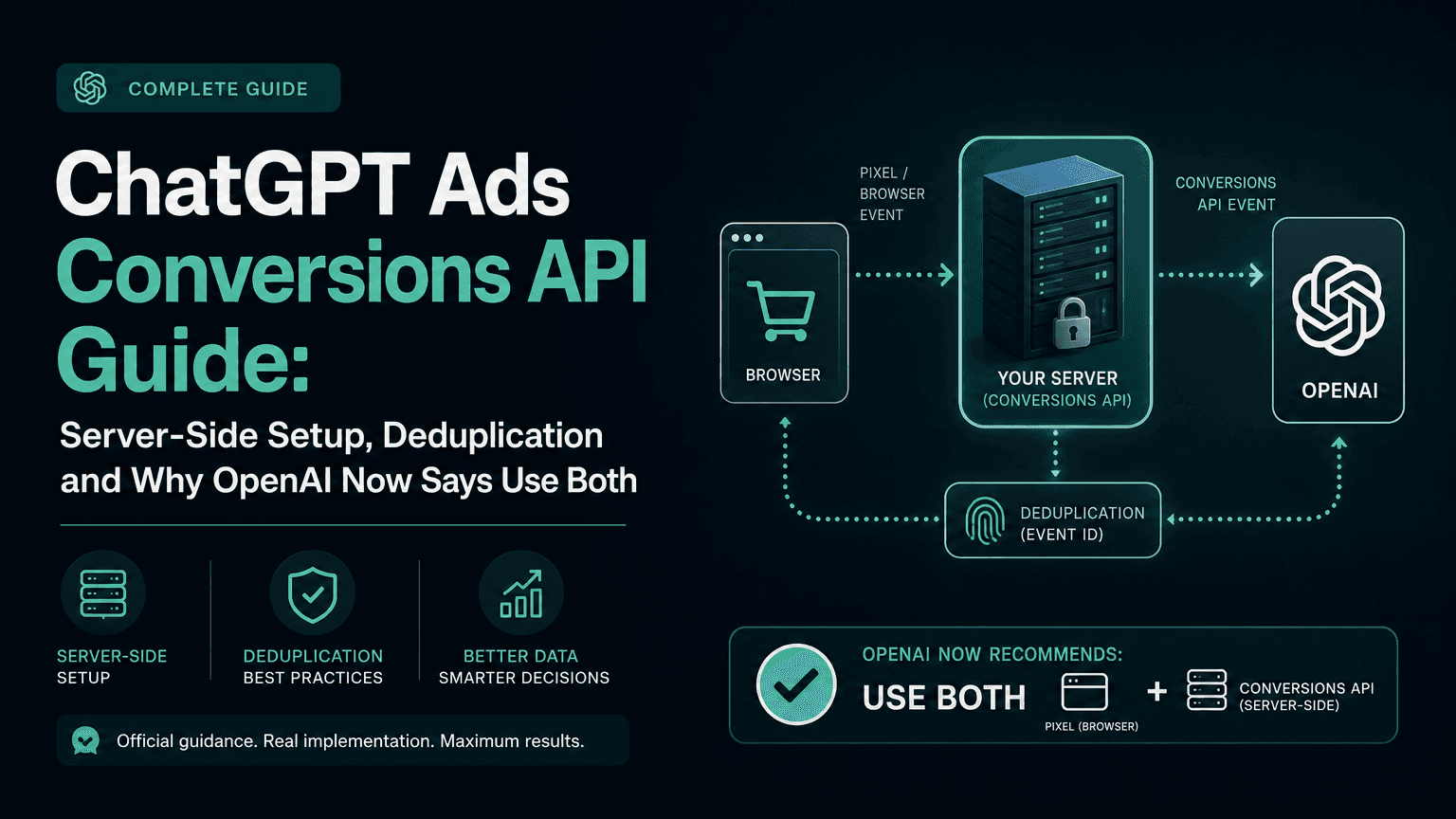
OpenAI's Measure Results FAQ ("How should I measure Shopify, headless storefront, or server-side purchase events?") says: "Use the browser Pixel for browser-side events and the Conversions API for server-side events. If you pass server-side conversions, preserve and send the available click reference values, such as oppref, so events can be attributed correctly."
OpenAI's conversion-tracking troubleshooting article ("We use Shopify. Do we need another integration?") says: "Check your Shopify connection before adding another integration. Confirm the connected ad account and Pixel, then check which events the app sends for your store. If you also use custom tags, checkout code, or a server sender, check whether they send the same events. Shopify setups can use different combinations of browser and server tracking."
They do not contradict each other. The first describes the general browser-plus-server design. The second says to start with what the app already sends before adding anything. The deduplication rule from the Conversions API documentation decides what happens if you get it wrong: "For deduplication, OpenAI uses your Pixel ID, event_name, and id. OpenAI uses the first event it receives for a matching key and ignores later duplicates."
Soku analysis. Three consequences follow:
- Same Pixel ID, different event IDs: if your manual custom pixel and the app both send
order_createdto the same Pixel ID with differentidvalues, the key does not match and both events count. - Different Pixel IDs: if you let the app create a new "OpenAI Pixel for Shopify" while the old custom pixel still fires to the old Pixel ID, the key cannot match because the Pixel ID differs. Each pixel records its own purchase. Make sure your campaign optimizes on the pixel and event you intend.
- The clean setups: either select your existing pixel in step 4 and remove overlapping manual purchase tracking, or keep your manual implementation and do not let the app send the same events. OpenAI documents which events the app sends nowhere except your own Ads Manager data. Check your events in Ads Manager after a test order before you remove anything.
If you run more than one pixel on purpose (for example, one store serving two brands), OpenAI's Multiple Pixel IDs page documents measureSingle for sending an event to one pixel only. For hand-built server events, our Conversions API guide covers event IDs and oppref forwarding.
Photo by Rifki Kurniawan on Unsplash.
Feed stuck at 0: a checkpoint-by-checkpoint fix
"Products stuck at 0" is the most common recent complaint on the App Store (more on that below). OpenAI's Shopify article gives six checks. Its general product-feed and crawler articles add more. Work through them in this order, because each one depends on the one before.
| # | Checkpoint | What to check | Source |
|---|---|---|---|
| 1 | Right account | "Confirm that the Shopify app is connected to the correct Ads Manager account." If you have more than one account, open the feed in each. | Shopify article |
| 2 | Sync finished | "Confirm that the product feed has finished syncing." Feed processing "can take anywhere from a few minutes to a few hours depending on the size of the feed". | Shopify article; product feeds |
| 3 | Products eligible in Shopify | "Check that your Shopify products are active and available." Draft, archived or unavailable products will not appear. | Shopify article |
| 4 | Pixel connected | "Confirm that OpenAI Pixel for Shopify is connected." OpenAI lists this as a check for missing products, not only for measurement. | Shopify article |
| 5 | Refresh and browser | "Refresh Ads Manager after the sync completes." "Confirm you are using either Chrome or Safari as a browser." | Shopify article |
| 6 | Read the feed counts | Open the tooltip beside Items in Feed Connection for the Ingested, Processed, Not approved and Ready counts. Ingested at 0 points to the sync. Ingested above 0 with Ready at 0 points to processing or approval. | Product feeds article |
| 7 | Upload History | "Check Upload History for processing updates and errors." | Product feeds article |
| 8 | Image hosting | "For product feeds, also allow OAI-SearchBot to crawl the product image URLs. Check firewall, CDN, and bot-protection rules on the image host; a 403 response can block feed processing." | Crawler guidance |
| 9 | Landing pages | "You must allow OAI-AdsBot." It is "required for ChatGPT Ads landing page validation and review." | Crawler guidance |
| 10 | Escalate | "contact [email protected] with the ChatGPT Ads Manager account you are trying to connect." | Shopify article |
Three things often get mistaken for a stuck feed:
- The Products tab is not the feed. OpenAI: "The Products tab is a reporting view. It does not show every product that has been uploaded or is eligible for ads." Products appear there only after they have delivery data, and "allow up to seven hours for product rows to first appear". To see what is ready to serve before launch, use the product count in the ad-group creation flow.
- The counts do not subtract cleanly. OpenAI: "These counts describe offer records rather than unique products. Different counts can cover different populations, so subtracting them may not give an accurate missing-product total." A Shopify product with variants can produce several offer records.
- "Not approved" has no per-item reasons. OpenAI: "Not approved is an aggregate count. It does not provide a complete list of affected items or a reason for each item." If it is high, check the policy basics in our review and rejections guide before contacting support.
If checkpoints 1 to 9 pass and Ingested is still 0, the problem is on the sync side, and you cannot fix it from your end. Contact support with the account ID, the Shopify store domain, and the date and time zone of your connection attempt. OpenAI's product-feed article lists the fields support wants for missing products: "Ad account ID, Feed ID, Campaign and ad-group names, Date range and time zone, Example product IDs, Screenshot of the Products tab".
Soku analysis. If you need product ads running this week and the app feed will not populate, you do not have to wait for the app. Build the feed yourself to OpenAI's specification and upload it by hosted URL or SFTP. Those are the methods OpenAI recommends for staying current, because "Items expire after 2 weeks thus it is recommended to use hosted URL, or automated SFTP uploads." The trade-off is that the app's automatic store updates no longer apply, so keeping the feed current is your job.
What merchants report: all 21 App Store reviews
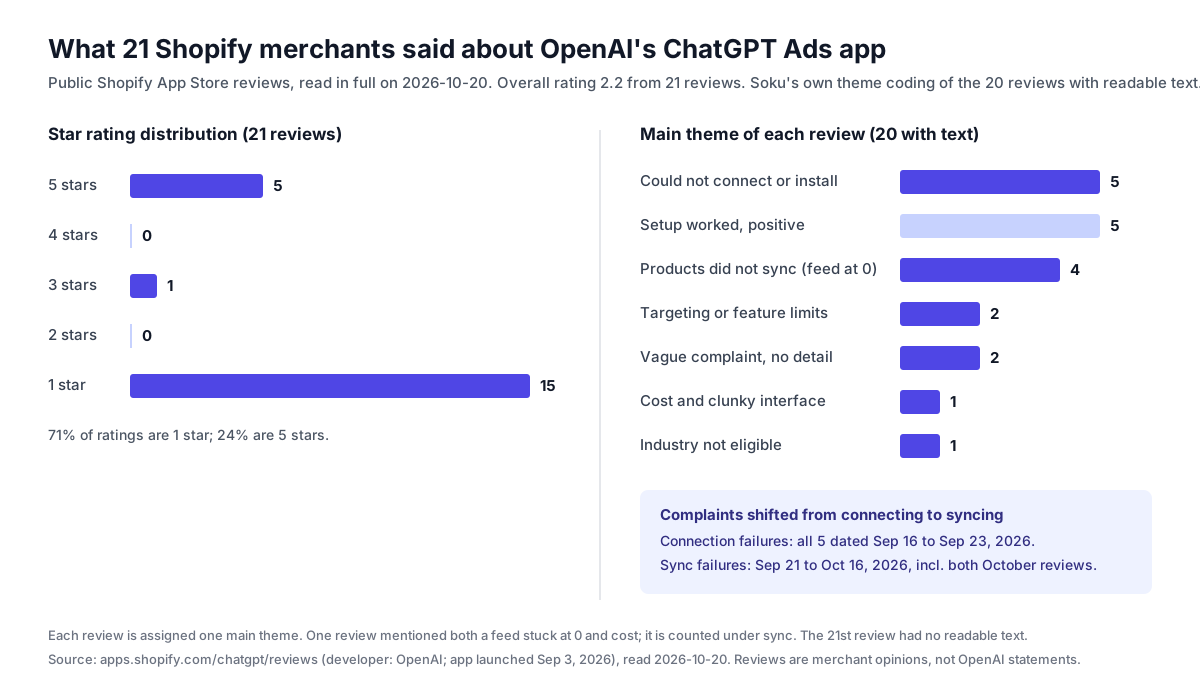
We read every public review of the app on 2026-10-20 and gave each review with readable text one main theme. Reviews are merchants' opinions, not OpenAI statements, and 21 reviews is a small sample. Read this as a guide to where problems happen, not as a measure of how often.
What stands out:
- Connection failures came early. All five "could not connect" reviews are dated 2026-09-16 to 2026-09-23. The quoted errors include "Unable to verify this connection attempt. Return to Shopify Admin and try again." and "Data sources are temporarily unavailable. Refresh the page and try again."
- Sync failures are the recent problem. The four "products did not sync" reviews are dated 2026-09-21 to 2026-10-16, and both October reviews are in this group. One reads: "The feed is created in my ads account but products stuck at 0 since the beginning." Another: "Account is connected, but no campaigns and no products are synchronised. The feed is created but products stuck at 0."
- Setup does work for some stores. Five reviews are positive about setup. One merchant wrote that "all the events fired in store reach Ads Manager". Another set up two stores and noted that the rating was "based solely on setup".
- Some complaints are documented limits, not bugs. Country-level geography for product-feed campaigns and industry eligibility are both written policy. Knowing them before you install avoids a bad first day.
Soku analysis. The shift from "won't connect" to "connected, but 0 products" suggests the connection step has become more reliable while the catalog sync has not, at least for the merchants who leave reviews. That is why the feed checkpoints above take up most of this guide.
Who is affected
- US Shopify merchants starting on ChatGPT Ads. The app is the fastest documented way to get a catalog into a product feed. Check account country, currency and time zone before connecting, and plan for budgets in $25 steps if you stay in the app.
- Merchants who already run a hand-installed OpenAI pixel. You face the most double-counting risk. Decide in step 4 whether the app or your existing setup owns each event.
- Merchants outside the US. The help article still says US only. The email's "later this month" date has passed without a documentation update. Use Ads Manager and a self-managed feed until the article changes.
- Agencies managing several stores. The removed "Manage your Shopify Connection" section was the only documented place to see which account and pixel a store is connected to. Keep your own record of store, account ID and Pixel ID.
What to do now
- Decide whether to connect an existing Ads Manager account or create one. If you create one, check country, currency and time zone first, because they cannot be changed.
- Write down the Ads Manager account ID and the Pixel ID you choose in step 4. The help centre no longer documents where to look them up inside the app.
- Before connecting a new pixel, list every place your store already sends OpenAI events (custom pixel, theme code, checkout extension, server sender) so you can tell what the app adds.
- After the sync, read the Ingested, Processed, Not approved and Ready counts rather than the Products tab.
- Check that OAI-SearchBot can fetch a sample of product image URLs and OAI-AdsBot can fetch product pages. A 403 can stop feed processing or fail review.
- Place a test order and confirm the purchase arrives once, not twice, in Ads Manager's Conversions.
- If you need a budget that is not a multiple of $25, or product-feed settings the app does not document, create the campaign in Ads Manager using the synced feed.
- If Ingested is still 0 after a day and checkpoints 1 to 9 pass, email [email protected] with the details listed above, or switch to a self-hosted feed.
Limits of this guide
- Soku did not install the app on a live store. Setup steps are OpenAI's published steps, not a record of the screens on 2026-10-20.
- OpenAI does not document the event mapping, sync schedule, field mapping or the full list of differences between the app and Ads Manager. We have not guessed them.
- The server-pixel statement comes from OpenAI's App Store reply, not the help centre.
- International timing comes from an email that the documentation has not confirmed. It is announced, not documented.
- We can date the removal of the "Manage your Shopify Connection" section only to between 2026-09-23 and 2026-10-20.
- The review analysis covers 21 public reviews. Merchants with no problems are less likely to write one.
How Soku fits
Soku is not a Shopify app and does not replace OpenAI's. Here is what Soku does with ChatGPT Ads today, checked against our code:
- Soku creates and manages ChatGPT Ads campaigns through Gravity's partner API. The connection is set in
packages/common/config.py, and campaign, ad group and ad operations are inpackages/ads_ops/chatgpt_ads/. - Soku builds each ChatGPT ad as a
chat_cardcreative (packages/ads_ops/chatgpt_ads/ads.py). Soku's ChatGPT Ads code has no product-feed campaign type. If you want feed-based product ads from your Shopify catalog, OpenAI's app or Ads Manager is the documented path. Soku is not. - Soku applies the same $25 minimum daily budget (
CHATGPT_ADS_MIN_CAMPAIGN_DAILY_BUDGET_USDinpackages/common/config.py). Before you add funds, its funding dialog lists four rules: daily-budget campaigns need at least $25 per day, each top-up must cover at least one day of budget, campaigns pause when the balance drops to $5 or less and must be resumed by hand, and a top-up does not launch a campaign. The rules are inapps/web/messages/en.json; the $5 threshold isCHATGPT_ADS_PAUSE_BALANCE_DOLLARSinpackages/common/constants.py. - Campaigns and ads that have not reached OpenAI yet show "OpenAI review: Not submitted yet" in Soku, not "In review", so a sync delay is not mistaken for a review delay.
Related reading
- Create ChatGPT Ads product-feed campaigns
- Product feed upload methods: CSV, hosted URL and SFTP
- Product-feed geo targeting and custom labels
- Minimum budgets by country
- Letting OAI-AdsBot crawl your landing pages
- Reporting delays for spend and conversions
- Pixel cookie expiry
Sources
All read on 2026-10-20 unless noted.
- OpenAI Help Center, Set up ChatGPT Ads for Shopify: https://help.openai.com/en/articles/20001523-set-up-chatgpt-ads-for-shopify
- Internet Archive copy of the same article, 2026-09-23: http://web.archive.org/web/20260923091515/https://help.openai.com/en/articles/20001523-set-up-chatgpt-ads-for-shopify
- Shopify App Store, ChatGPT Ads listing: https://apps.shopify.com/chatgptads
- Shopify App Store, ChatGPT Ads reviews: https://apps.shopify.com/chatgpt/reviews
- OpenAI Help Center, Create Campaigns from Product Feeds: https://help.openai.com/en/articles/20001268-create-campaigns-from-product-feeds
- OpenAI Help Center, Daily Budgets: https://help.openai.com/en/articles/20001413-daily-budgets
- OpenAI Help Center, Ads Manager Account Setup: https://help.openai.com/en/articles/20001213-ads-manager-account-setup
- OpenAI Help Center, Billing & Payment: https://help.openai.com/en/articles/20001216-billing-payment
- OpenAI Help Center, Ads Manager Availability: https://help.openai.com/en/articles/20001245-ads-manager-availability
- OpenAI Help Center, Measure Results: https://help.openai.com/en/articles/20001214-measure-results
- OpenAI Help Center, Troubleshooting conversion tracking for ChatGPT Ads: https://help.openai.com/en/articles/20001604-troubleshooting-conversion-tracking-for-chatgpt-ads
- OpenAI Help Center, Advertiser guidance for allowing OpenAI web crawlers: https://help.openai.com/en/articles/20001243-advertiser-guidance-for-allowing-openai-web-crawlers
- OpenAI developer docs, Conversions API: https://developers.openai.com/ads/conversions-api
- OpenAI developer docs, Supported Events: https://developers.openai.com/ads/supported-events
- OpenAI developer docs, Multiple Pixel IDs: https://developers.openai.com/ads/multiple-pixels
- OpenAI advertiser product-update email of 2026-09-16 (lead source; availability timing only, announced and not yet documented)